

Debugging Liquid, Shopify's server-side templating language, can be challenging due to its lack of detailed error messages and silent failures. This guide simplifies the process with practical tools and techniques to troubleshoot common errors and optimize your Shopify store. Key takeaways include:
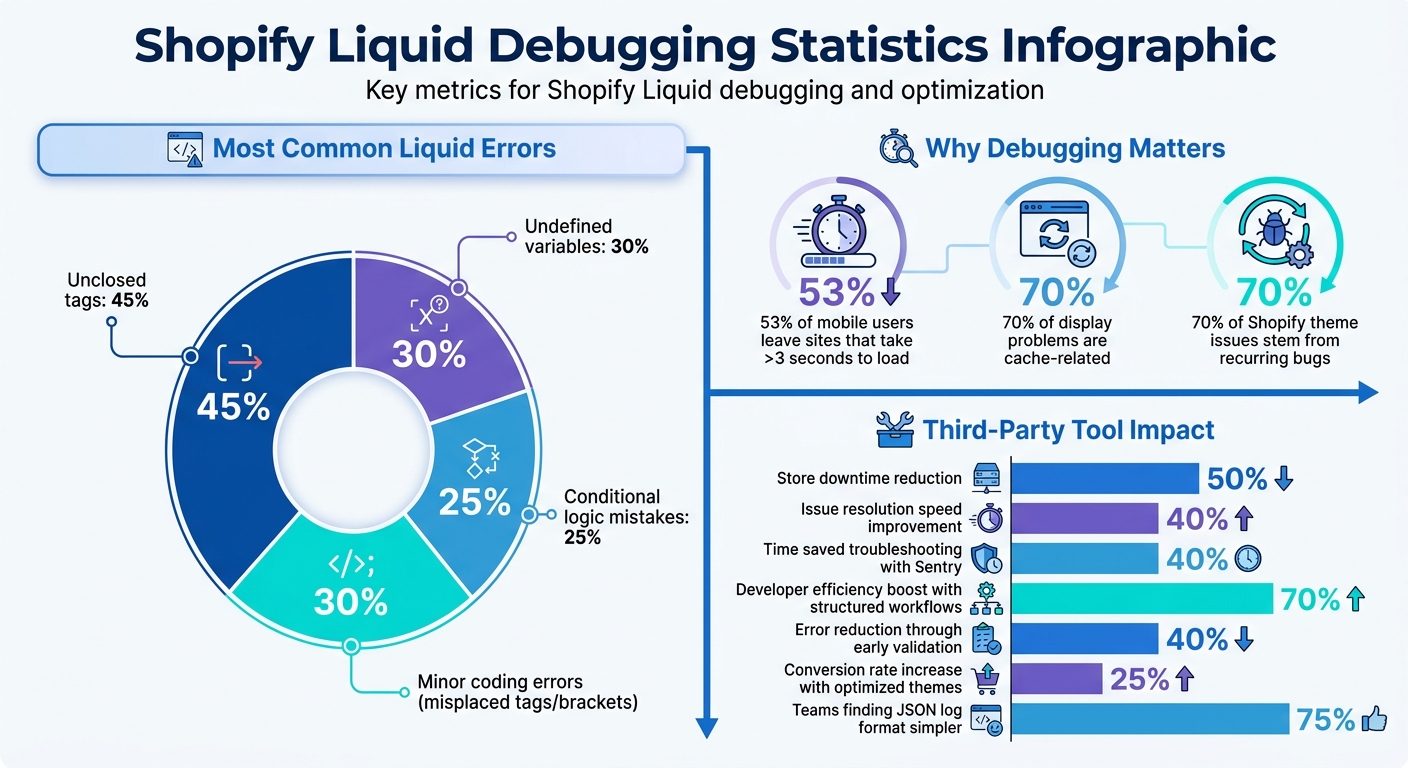
- Common Issues: Undefined variables (30% of errors), unclosed tags (45% of issues), and performance slowdowns from nested loops or excessive API calls.
-
Debugging Tools:
- Use the
jsonfilter to inspect object structures. - Apply the
inspectfilter for quick checks on variable existence and type. - Isolate code with
{% comment %}tags to identify problematic sections.
- Use the
-
Advanced Techniques:
- Enable strict mode (
strict_variables: true,strict_filters: true) to log undefined variables and filters. - Debug render tags by explicitly passing variables and avoiding inline logic.
- Enable strict mode (
- Third-Party Tools:
Efficient debugging ensures faster load times, fewer rendering issues, and better user experiences. Fixing unclosed tags, reducing API calls, and validating data structures can significantly improve your store's performance.
Common Liquid Debugging Errors: Distribution and Impact Statistics
Shopify Theme Development - Liquid Full Tutorial
sbb-itb-8b1a57a
Liquid Debugging Tools and Features
Shopify offers built-in tools to help you inspect and debug your Liquid code. These tools are part of the Liquid language itself, making it easy to work within your theme files. Below, we’ll break down how specific filters can help expose and understand hidden data structures.
Using the JSON Filter for Debugging
The json filter is a handy way to reveal the contents of Liquid objects. For instance, adding {{ product | json }} to your template outputs the entire product object in JSON format. This includes everything from basic properties like product.title to more detailed, nested attributes such as product.variants[0].price.
A practical use case is embedding this output in a script tag, like so: <script>console.log({{ product | json }});</script>. This allows you to view the object directly in your browser's console, keeping your page clean while still accessing the data.
By using the json filter, you can easily verify the structure of your data and pinpoint the fields you need. It’s a powerful way to confirm the accuracy of your data structures.
Isolating Code with Comment Blocks
Comment blocks are a simple yet effective way to isolate parts of your code during debugging. Use {% comment %} and {% endcomment %} tags to temporarily disable specific sections of code. If an error vanishes after commenting out a section, you’ve likely found the source of the issue.
For quick notes, Liquid 5.4.0 introduced inline comments with {%- # This is a note -%}. These annotations don’t interfere with your code execution. However, keep in mind that Liquid does not allow nested comment blocks - attempting to do so will result in compiler errors. Also, HTML comments (<!-- -->) won’t prevent Liquid code from being processed; only Liquid's comment tags can do that.
Debugging with the Inspect Filter
The inspect filter is another tool for debugging. It converts a Liquid object into a readable string, which can be useful for checking a variable's existence and type. For example, {{ cart | inspect }} will display the structure of the cart object.
If you use {{ product.custom_field | inspect }} and it returns "null", it means the property doesn’t exist or hasn’t been assigned correctly. This is particularly useful since undefined variables account for nearly 30% of Liquid rendering issues. A quick check with inspect can save you a lot of troubleshooting time.
The key difference between inspect and json lies in their depth. While inspect is great for quick checks of existence and basic states, json dives deeper, offering a full view of complex objects. Together, these tools make it much easier to identify missing or misconfigured data in your Liquid code.
Advanced Debugging Techniques
Once you've mastered basic debugging tools, stepping into advanced techniques like strict mode can make a world of difference in catching errors early. Liquid’s strict mode settings are particularly useful when basic debugging falls short, as they help identify issues that might otherwise go unnoticed. By default, Liquid operates in lax mode, meaning undefined variables or filters don’t trigger errors and instead fail silently - a behavior that often leads to unexpected outcomes.
"Normally the parser is very lax and will accept almost anything without error. Unfortunately this can make it very hard to debug and can lead to unexpected behaviour." - Shopify Liquid Documentation
Strict mode flips this behavior. Enabling strict_variables: true ensures that any undefined variable is logged as an error in the errors array instead of rendering as nil. Similarly, setting strict_filters: true flags undefined filters, causing the entire expression to render as nil while logging the issue.
Enabling Strict Variables and Filters
Liquid provides four error modes: :lax (default), :warn (logs errors but continues rendering), :strict (raises SyntaxError for certain invalid syntax), and :strict2 (raises errors for all invalid syntax).
"It is recommended that you enable :strict or :warn mode on new apps to stop invalid templates from being created." - Shopify
For development projects, using :strict or :strict2 is a smart way to catch problems before they hit production. On the other hand, for established themes, starting with :warn mode allows you to identify issues without risking disruptions on live sites. You can also use the render! method instead of render during local testing to immediately surface errors.
To dig deeper into errors, you can inspect the template.errors object programmatically. For instance, if your template includes {{ user.name }} but the user variable is undefined, strict mode logs the error as Liquid::UndefinedVariable: undefined variable user. Similarly, using an unregistered filter like {{ price | format_currency }} will generate Liquid::UndefinedFilter: undefined filter format_currency.
These settings not only help uncover hidden issues but also prepare you for handling more complex debugging scenarios with render tags.
Using Render Tag Debugging Parameters
Building on the insights from strict mode, debugging render tags requires understanding their isolated scope. A render tag cannot access variables defined outside its snippet unless those variables are explicitly passed as parameters. This isolation often causes errors, especially when working with Shopify’s stricter parser.
"Previously, Liquid would allow certain code patterns which appear to be well formed, but which the language doesn't yet support. Liquid's parser would accept this code, but evaluate it incorrectly." - Shopify Developer Documentation
The stricter parser now flags syntax errors that were previously ignored. For example, filters and logical operators can’t be used directly in render tag arguments. Instead of writing {% render 'snippet', alt: image.alt | escape %}, you should use {% assign escaped_alt = image.alt | escape %}{% render 'snippet', alt: escaped_alt %}.
Another common issue occurs when variables are passed without key-value pairs, such as {% render 'snip', product %}. This triggers an "Expected colon but found comma" error. To avoid this, always pass variables explicitly, like {% render 'snip', product: product %}. If conditional logic is needed, wrap the render tag in an if statement instead of embedding logical operators directly within the tag.
When a snippet fails to render as expected, double-check that all required variables are explicitly passed, and avoid using filters or conditions directly in the tag arguments. Moving complex logic into assign statements before the render tag not only resolves most syntax issues but also makes your code easier to maintain.
Common Liquid Errors and How to Fix Them
Building on the debugging tools mentioned earlier, let's dive into some frequent Liquid errors and their solutions. Debugging Liquid can feel like solving a puzzle - errors can be cryptic, and silent failures often result in blank outputs. Since Liquid runs server-side on Shopify's infrastructure, traditional browser tools like DevTools and console.log aren't available.
"Liquid is a templating language, not a programming language. It runs server-side on Shopify's infrastructure, which means no browser DevTools and no console.log." - Yakhyo Ismoildjonov, Shopify Developer
Most Liquid errors follow predictable patterns. For example, around 30% of rendering issues come from undefined variables, 25% are due to mistakes in conditional logic, and another 30% are caused by minor coding errors, like misplaced tags or unclosed brackets. Recognizing these patterns can make troubleshooting faster and less frustrating.
Steps to Identify Errors
When something goes wrong, start by viewing the page source (Ctrl+U on Windows or Cmd+U on Mac) and look for phrases like "Liquid error" or "Liquid syntax error." These often point to the specific file and line number causing the problem. If no error message appears, the issue might be a silent failure. In such cases, use the | json filter or inspect filter to check if a variable contains data or is returning nil.
Below is a quick-reference table for common Liquid errors, their causes, and how to fix them.
Error Table: Causes, Symptoms, and Fixes
| Error Message / Symptom | Root Cause | Step-by-Step Solution |
|---|---|---|
undefined method for nil:NilClass |
Trying to access a property on a null or non-existent object. | 1. Identify the object. 2. Wrap the code in {% if object %}. 3. Verify the object is available in the template. |
Liquid syntax error: Unknown tag |
Typo in a tag name (e.g., {% end if %} instead of {% endif %}) or using {% section %} in a snippet. |
1. Check tag spelling and structure. 2. Ensure {% section %} is only used in JSON templates, not snippets. |
Could not find snippet |
The {% render %} tag references a file that doesn't exist in the snippets/ folder. |
1. Double-check the filename for typos. 2. Make sure the file is in the correct snippets directory. |
#<ProductDrop:0x...> |
Outputting a Liquid object directly without applying a filter. | Append an appropriate filter (e.g., {{ product.title }} instead of {{ product }}). |
Invalid JSON in schema |
Malformed JSON syntax in a section's {% schema %} block. |
1. Validate the JSON at jsonlint.com. 2. Look for missing commas, quotes, or unclosed brackets. |
Exceeded maximum number of unique handles |
Too many all_products calls or Featured Product sections (typically more than 20). |
1. Reduce the number of featured sections. 2. Use Featured Collection sections or collection.products instead. |
| Empty output (no error) | Variable is nil or empty, causing Liquid to fail silently. |
1. Use `{{ variable |
Preventing Errors
To catch issues before they hit production, Shopify's Theme Check linter is invaluable. It flags undefined variables, outdated tags, and performance concerns during development. For dynamic content that isn't displaying, ensure metafields are properly linked to a "dynamic source" in the theme editor rather than hardcoded. If updates still don't appear, clear both Shopify's theme cache and your browser cache - 70% of users report cache-related display problems.
Third-Party Tools for Enhanced Debugging
Shopify's built-in debugging tools are useful, but they don't always catch everything. This is where third-party tools shine - they offer real-time error tracking to identify issues that static tools like Theme Check might miss. For instance, a nil:NilClass error could pop up only when a customer views a product with missing metafields, something you'd never notice during development. Using services like Sentry or New Relic can make a huge difference, helping reduce store downtime by up to 50% and speeding up issue resolution by 40% through automated alerts.
These external tools work alongside Shopify's native debugging features to provide a more comprehensive error-tracking system.
Using Sentry for Error Tracking

Sentry specializes in real-time error tracking, covering both server-side and client-side problems. When a Liquid error occurs, Sentry captures it, groups similar errors, and sends instant notifications. This includes catching silent Liquid errors that may otherwise go unnoticed.
To integrate Sentry, you can pass Liquid data into JavaScript using the | json filter. For example, wrapping product data in a <script> tag like console.log({{ product | json }}); makes it accessible for Sentry's monitoring. This method enhances Shopify's in-theme debugging by covering gaps left by static analysis tools. Sentry also aggregates logs to identify repeated issues and sends automated alerts for critical errors. Development teams report a 40% reduction in time spent troubleshooting when using this tool.
Loggly for Centralized Log Management
Loggly simplifies log management by collecting data from multiple sources in one place, making it easier to identify recurring problems across your store. Unlike Shopify's built-in tools, which require manual effort like refreshing pages or digging through HTML, Loggly organizes logs for quick access. You can filter logs by severity levels such as INFO, WARN, ERROR, and DEBUG, streamlining the debugging process.
With structured JSON log entries, searching through logs becomes more straightforward - 75% of development teams report that this format makes log parsing much simpler. Loggly also includes features like log rotation and retention, which help prevent data loss and manage file sizes for long-term analysis. This centralized approach is particularly effective since 70% of Shopify theme issues tend to stem from a small set of recurring bugs.
Conclusion
Debugging Liquid code is essential to keeping your store running smoothly and protecting your revenue. Since Liquid executes on the server side, any inefficiencies in the code can directly increase your Time to First Byte (TTFB) and slow down page loads. And here’s the kicker: 53% of mobile users will leave a site that takes longer than three seconds to load. By optimizing your code, you can improve Core Web Vitals like Largest Contentful Paint (LCP). For example, ensuring your hero image isn’t lazy-loaded can shave off up to a full second of load time.
The tools discussed - Shopify Theme Inspector, Theme Check, Sentry, and Loggly - are invaluable for spotting and addressing issues before they reach your customers. Regular testing is key, as many problems stem from simple coding errors or misconfigurations. In fact, early validation can reduce errors by 40%, and well-structured workflows can boost developer efficiency by 70%.
"Finding inefficiencies... is like finding a needle in a haystack, but optimizations like these can really pay off and drastically reduce server response times." - Umair Choudhary, Shopify Partners
To keep things running smoothly, focus on the basics: always close your tags (unclosed tags cause 45% of issues), avoid performing complex operations inside loops, and use the default filter to handle undefined variables (which account for nearly 30% of template problems). Efficiently optimized Liquid themes can even increase conversion rates by around 25%. By following these debugging strategies, you’ll not only fix errors faster but also enhance your store’s performance and boost conversions.
Consistent debugging isn’t just about fixing code - it’s about creating a seamless shopping experience that keeps customers engaged and drives sales.
FAQs
How do I debug Liquid when nothing shows and there’s no error?
When your Liquid code results in a blank page without any errors, troubleshooting can feel tricky. Here's how you can tackle it:
- Use the Shopify Theme Inspector: This tool is excellent for analyzing render profiling. It helps pinpoint where things might be going wrong in your Liquid code.
- Check the Page Source: Sometimes, hidden messages like 'Liquid Errors' are embedded in the source code. Viewing the page source can reveal these clues.
- Leverage Offline Tools: Tools like themekit can catch syntax errors before you deploy your changes, saving you from potential headaches.
By combining these approaches, you can uncover and address the issues behind blank pages or silent failures in your Liquid code.
Where can I enable Liquid strict mode in a Shopify theme?
To turn on Liquid strict mode in a Shopify theme, you'll need to adjust the .theme-check.yml file located in your theme's root directory. Start by generating this file using the shopify theme check --init command. Once created, you can modify it to configure strict parsing according to your needs. During migration, Shopify also automatically rewrites any incompatible code and includes comments to clarify the changes. Be sure to review these updates thoroughly to confirm everything works as intended.
Why can’t my snippet see variables unless I pass them to render?
In Shopify Liquid, variables defined within a snippet are local to that snippet and cannot be accessed outside of it. If you need to use variables inside a snippet, you must explicitly pass them as parameters when rendering the snippet. However, global objects like product, collection, and section are automatically available within the snippet. Keep in mind, any variables created within the snippet will stay local unless explicitly passed.