

Your Shopify store's speed matters. A delay of just one second can lose you sales, while improving load time by 0.1 seconds can increase conversions by 8.4%. Shopify's built-in Content Delivery Network (CDN), powered by Cloudflare, and its caching system are designed to help your store load faster, handle traffic spikes, and improve customer experience.
Here's what you need to know:
- Shopify CDN: Distributes your store's content globally, reducing load times by serving files from the closest server to your customer.
- Caching: Temporarily stores frequently accessed data to reduce server strain and speed up page delivery.
- Performance Stats: Shopify handles 25 million requests per minute, with an average Time to First Byte (TTFB) of 0.51 seconds - faster than most competitors.
- Optimization Features: Includes automatic image compression, modern file formats (WebP, AVIF), and cutting-edge protocols like HTTP/3.
In this guide, you'll learn how Shopify's CDN works, how caching improves performance, and practical tips to optimize your store for faster load times and better user experience. Whether you're managing a small store or handling high-traffic events, these strategies can help you deliver faster, more reliable shopping experiences.
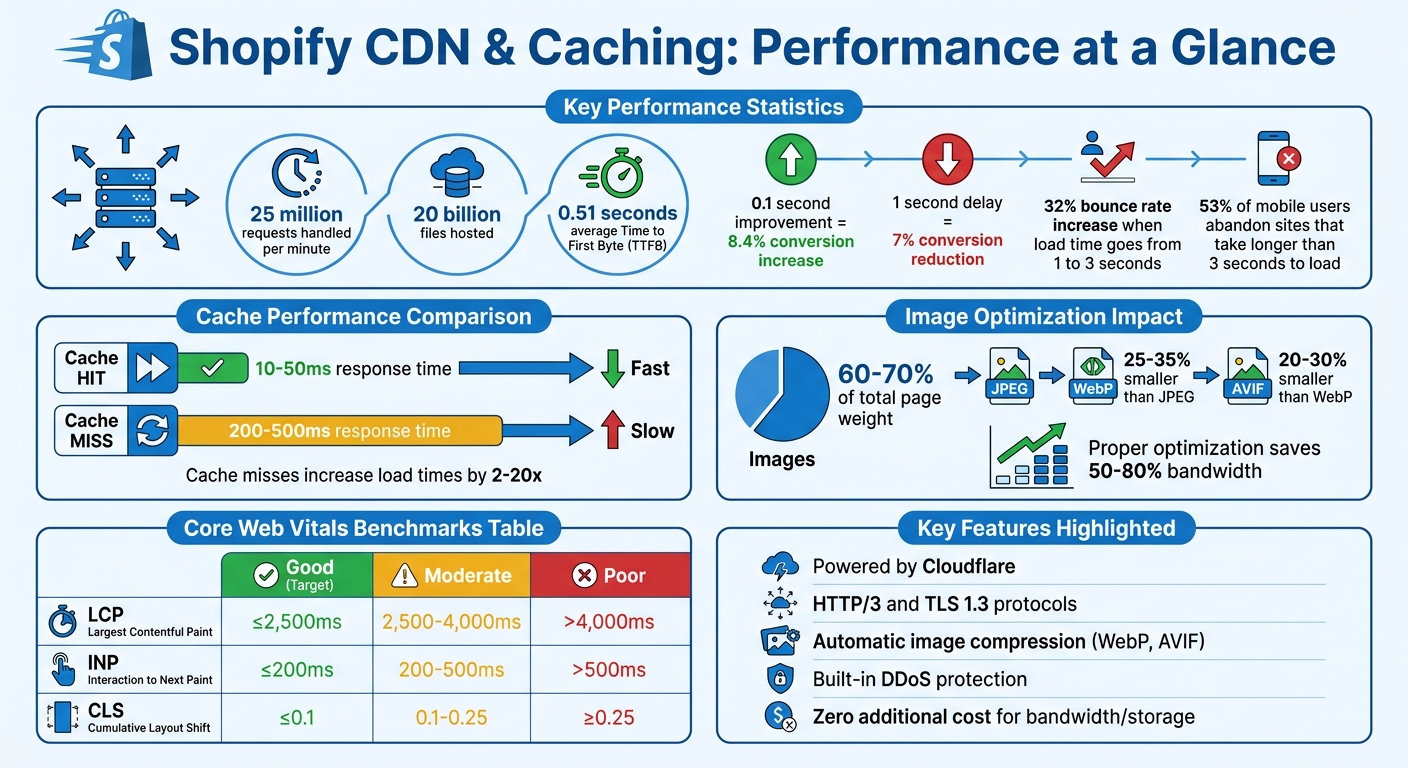
Shopify CDN Performance Statistics and Core Web Vitals Benchmarks
How Shopify's Built-in CDN Works

Shopify's Global Server Network
Shopify's CDN, powered by Cloudflare, relies on thousands of geographically distributed Points of Presence (PoPs) to deliver content efficiently. This setup ensures that your store's content is served from the location closest to each visitor. For instance, a customer in Tokyo will receive content from servers in Asia, while someone in New York will be served from North American servers. By reducing the distance data needs to travel, this system minimizes latency and speeds up page load times.
The CDN handles static assets like images, CSS, and JavaScript files while also managing dynamic content through a specialized Storefront Renderer (SFR). This server-side renderer ensures smooth delivery, even when cache misses occur. Files are optimized through minification and compression and are delivered using cutting-edge protocols like HTTP/3 and TLS 1.3, ensuring secure and fast data transfers.
Shopify further improves efficiency by reusing connections to serve all assets through your storefront domain (e.g., yourstore.myshopify.com/cdn/shop/files/...). This approach reduces overhead and accelerates file delivery. Additionally, the CDN automatically converts images to modern formats, such as WebP, for browsers that support them, enhancing performance and user experience.
These technical features work together to deliver faster speeds, increased reliability, and seamless scalability for Shopify stores.
Benefits of Using Shopify's CDN
One of the standout benefits of Shopify's CDN is its ability to deliver content quickly across the globe. With over 20 billion files hosted and 25 million requests handled every minute, Shopify's infrastructure ensures that your store performs well no matter where your customers are located.
Another major advantage is reliability during periods of high traffic. The CDN uses edge load balancing to spread requests across its network, preventing any single server from being overwhelmed during events like flash sales or holiday rushes. It also includes built-in DDoS protection, which blocks malicious traffic at the edge before it can affect your store's origin server.
Indraneil Khedekar, Founder of Ecommerce Launcher, highlights the CDN's impact:
Shopify CDN is a powerful tool that improves page load times by making files smaller, changing their format, and improving how they load on your website.
Best of all, this robust CDN is included with every Shopify plan at no extra cost. There are no additional fees for bandwidth or storage, regardless of how much traffic your store receives. The CDN also manages cache updates automatically by appending version numbers to asset URLs (e.g., ?v=1384022871), ensuring that updated files are served immediately without any manual intervention.
sbb-itb-8b1a57a
Shopify Caching: How It Works
How Shopify Caches Static Assets
Shopify's CDN takes care of caching for static files - like images, CSS, and JavaScript - automatically, so you don’t need to configure anything manually. When you upload an asset to your theme, it’s distributed across thousands of servers globally and optimized for faster delivery. CSS and JavaScript files are compressed using Brotli or gzip, and they're also minified to ensure compatibility across a wide range of browsers.
When referencing an asset with the {{ 'file' | asset_url }} Liquid filter, Shopify adds a version number to the URL (e.g., ?v=1384022871). This versioning is critical for cache invalidation - if you update a file, the CDN recognizes it as new and delivers the updated version right away. Avoid hardcoding asset URLs because doing so skips versioning, which could lead to serving outdated files.
Images get converted into modern formats, such as WebP or AVIF, depending on the browser’s capabilities. You can also resize or crop images dynamically by adding parameters to the image URL. Additionally, all assets are delivered using HTTP/3 and TLS 1.3 to ensure faster speeds and improved security.
Dynamic Content Caching Challenges
While static assets are easily cached, dynamic content introduces more complexity. A major issue is personalization conflict - for example, if a cached page shows personalized data like "Welcome, Sarah" or a cart count, another visitor might accidentally see that information. This creates privacy and security risks.
Another challenge is keeping data fresh. Things like inventory levels, flash sale prices, or real-time stock updates can change quickly. If the cache duration is too long, customers might see outdated information. On the other hand, refreshing the cache too often can undo the performance benefits of caching. Setting cache headers to "public" on pages with sensitive or personalized data can also lead to vulnerabilities.
Shopify tackles these issues with tailored strategies. For headless stores built with Hydrogen, Shopify offers specific caching options like CacheShort for frequently changing data (e.g., inventory) and CacheLong for more static content (e.g., product descriptions). They also use a stale-while-revalidate approach, which serves cached content instantly while fetching updated data in the background. This method balances speed with accuracy. For stores using Liquid themes, a common practice is to load public data on the server side and use client-side JavaScript to fetch personalized details (like cart contents) after the page has loaded.
Managing Cache-Control Headers in Shopify Themes
Given these challenges, managing cache-control headers in Shopify themes requires specific techniques. Shopify's CDN automatically handles the raw Cache-Control headers, so you can’t modify them directly. Instead, you can influence caching through cache invalidation by using the asset_url Liquid filter.
It’s important to note that Shopify’s CDN only recognizes the ?v= query parameter for cache invalidation. Custom query strings like ?t=, ?cache=, or ?ver= are ignored, meaning the CDN will continue to serve the old cached version even if you append those parameters. As Karan Goyal explains:
Shopify's CDN only recognizes the ?v= query parameter for cache invalidation. Custom query strings like ?t=, ?cache=, or bare timestamps are silently ignored.
To manage cache effectively, rename CSS files to .css.liquid so you can use the asset_url filter for referencing background images or fonts within your stylesheets. Also, scan your theme for hardcoded cdn.shopify.com URLs and replace them with Liquid filters. If you need to force an immediate update across the CDN, re-upload the file via Shopify's admin or CLI. This action generates a new content hash for the ?v= parameter, ensuring the old cache is invalidated.
Optimization Strategies for CDN and Caching
Image Optimization Best Practices
Images play a massive role in your Shopify store's performance, accounting for 60–70% of the total page weight. To keep things running smoothly, resize images to a maximum of 2,048×2,048 pixels and compress them to 100–200 KB before uploading.
Shopify's Image API is a handy tool for dynamic resizing, cropping, and format conversion. For example, you can use the image_url filter and append parameters like ?width=800&crop=center to collection thumbnails. This approach can save 50–80% in bandwidth. Shopify also automatically converts images to modern formats like WebP (25–35% smaller than JPEG) and AVIF (20–30% smaller than WebP), depending on browser compatibility.
For better LCP (Largest Contentful Paint) scores, eagerly load hero and primary product images. Lazy-loading these images can slow your site by about 3 seconds compared to eager-loading. Use loading="eager" and fetchpriority="high" for above-the-fold images. Reserve loading="lazy" for content below the fold, such as collection grids or footer badges.
Another tip: always include width and height attributes in your <img> tags. This prevents layout shifts, keeping your CLS (Cumulative Layout Shift) score stable. If you’re embedding images in CSS, rename files to .css.liquid and use the {{ 'image.jpg' | asset_url }} syntax to ensure proper CDN versioning.
Cache Warming: What It Is and How to Use It
Cache warming is a proactive way to ensure fast content delivery. By pre-loading content into the CDN before users request it, you can avoid slow cache misses. On Shopify's CDN, cache hits typically respond in 10–50 ms, while cache misses can take 200–500 ms. Shopify even injects speculation rules into browsers to prefetch content, effectively warming the cache.
For even better performance, you can add custom speculation rules to your theme for high-priority pages. Shopify's Storefront Renderer (SFR) also helps speed up cache misses by accessing alternative cache levels more efficiently.
A real-world example? In February 2025, LAKOR moved to Shopify's globally distributed infrastructure to solve performance issues for international users. Before the switch, U.S. visitors faced slow load times due to servers being located in Denmark. By transitioning to Shopify's Liquid-based site and using its built-in CDN, LAKOR achieved lightning-fast speeds and passed all Core Web Vitals assessments for both mobile and desktop.
Common Performance Bottlenecks and Solutions
Even with CDN and caching optimizations, some common pitfalls can slow things down. One major issue is improper cache invalidation. Shopify's CDN only recognizes the ?v= parameter for busting cache. Custom strings like ?t=, ?cache=, or timestamps are ignored, leading to stale assets being served. As Karan Goyal explains:
Your 'cache busting' was never busting anything... The CDN strips the unrecognized parameter and serves whatever's cached.
Another bottleneck comes from external domain overhead. Loading assets from third-party CDNs can add extra DNS lookups, TCP connections, and TLS handshakes, delaying rendering by over half a second. To avoid this, consolidate external CSS and JavaScript into your theme's assets folder. This reduces overhead and maximizes connection reuse.
App bloat is another issue. Many apps inject their own JavaScript and CSS files, increasing HTTP requests and slowing down your site. Use Shopify's Online Store Speed report to identify apps that heavily impact performance, and remove any non-essential ones. Remember, even a one-second delay in page load time can reduce conversions by up to 7%, and 53% of mobile users will abandon a site if it takes longer than three seconds to load.
Measuring CDN and Cache Performance
Let's explore the tools and techniques that can help you evaluate CDN and cache performance, building on our earlier discussion of common performance bottlenecks.
Tools for Testing CDN Performance
To assess Shopify's CDN and caching performance, start with Shopify's Web Performance Reports. These reports, available in your Shopify Admin under Analytics > Reports, provide Real User Metrics (RUM) for Core Web Vitals like LCP (Largest Contentful Paint), INP (Interaction to Next Paint), and CLS (Cumulative Layout Shift). This data reflects the experience of real users visiting your store.
For a closer look, use Chrome DevTools. Open the Network tab and examine the x-cache header to determine whether the content was served from the cache (HIT) or required a backend fetch (MISS). Running tests in Incognito Mode ensures local caching doesn’t interfere with the results.
Other tools to consider include:
-
WebPageTest: Offers waterfall charts to visualize connection overhead and confirm if assets are being loaded from
cdn.shopify.com. It also allows testing from various global locations to check how well the CDN reduces latency for users worldwide. - Google PageSpeed Insights and Lighthouse: These tools provide lab data and audits for issues like render-blocking resources and image optimization.
- Shopify Theme Inspector: This Chrome extension identifies slow Liquid code that might be affecting server response times (TTFB).
-
TTFB Monitoring Tools: Platforms like
ttfb.edgemesh.commeasure the time between a user request and the first byte of data, a key indicator of cache performance. - TREO Sitespeed Tool: Uses the Chrome User Experience Report (CrUX) API to visualize real-user performance distributions.
Here’s a quick reference for Core Web Vitals benchmarks:
| Core Web Vital | Good (Target) | Moderate | Poor |
|---|---|---|---|
| Largest Contentful Paint (LCP) | ≤ 2,500ms | 2,500ms - 4,000ms | > 4,000ms |
| Interaction to Next Paint (INP) | ≤ 200ms | 200ms - 500ms | > 500ms |
| Cumulative Layout Shift (CLS) | ≤ 0.1 | 0.1 - 0.25 | ≥ 0.25 |
These tools provide a solid foundation for understanding your CDN's performance. Next, let’s examine how to dig deeper into cache efficiency.
How to Analyze Cache Efficiency
Begin your analysis by inspecting the x-cache header in your browser's Network tab. By clicking on the main request, you can see whether the page was served via the high-speed global network (HIT) or fetched from the Shopify backend (MISS). For example, a 2022 performance study of the footwear brand Allbirds revealed a 37.8% cache miss rate across 631 page requests. This led to a performance dip, with some TTFB measurements exceeding 500ms.
"Server cache misses are the silent killers of page performance." - Jake Loveless, Co-Founder, Edgemesh
To pinpoint performance gaps, compare metrics like TTFB, FCP (First Contentful Paint), and LCP. A slow TTFB combined with faster subsequent metrics often signals server-side or cache efficiency issues. On Shopify, cache misses can increase page load times by 2-20x compared to cache hits. Use the Shopify Theme Inspector to generate a flame graph of Liquid rendering, which can help identify inefficient code, such as nested loops or redundant data calls that add to server processing time.
Another key step is to verify asset versioning using the asset_url filter. Ensure resources are served from as few domains as possible - ideally, only the Shopify CDN. This minimizes DNS lookups and SSL connection delays. Aim for a TTFB under 0.8 seconds and an LCP under 2.5 seconds for optimal performance.
Conclusion
When it comes to boosting your Shopify store's performance, combining all optimization strategies can make a noticeable difference. Shopify's CDN, powered by Cloudflare, offers a robust and cost-free content delivery network. It takes care of tasks like minification, compression (using Brotli or gzip), and supports cutting-edge protocols such as HTTP/3 and TLS 1.3. To get the most out of this setup, use the asset_url Liquid filter for cache busting, limit external domains to two, and keep an eye on cache hit ratios and Core Web Vitals.
The impact of these optimizations is clear. Studies show that improving mobile speed by just 0.1 seconds can increase retail conversions by 8.4%, while a jump in page load time from 1 to 3 seconds raises the likelihood of a bounce by 32%. These numbers directly influence your store's revenue.
To fine-tune your store further, review your theme code and replace hard-coded asset references with Liquid filters. Consolidate external JavaScript and CSS files into your assets folder to streamline loading. Make it a habit to run weekly checks with tools like Google PageSpeed Insights or GTmetrix to track metrics like time-to-first-byte and largest contentful paint.
For merchants with high-traffic stores, Shopify Plus provides advanced caching options and dedicated CDN features tailored for large-scale needs. However, even standard Shopify plans include the essential infrastructure required to deliver fast and dependable user experiences across the globe. By consistently applying these practices, your store will be well-equipped to handle growth while maintaining top-tier performance.
FAQs
How can I tell if my Shopify pages are cache HITs or MISSes?
To see if your Shopify pages are cache HITs or MISSes, you can use browser developer tools, such as Chrome DevTools. Start by opening the Network tab, refreshing the page, and checking the status or size columns for labels like "from cache" or "CF cache."
- A HIT means the content was delivered from the cache.
- A MISS means the content was retrieved directly from the server.
You can also examine static assets for further insights.
Why isn’t my cache-busting query string working on Shopify?
Shopify's CDN relies exclusively on the ?v= parameter for cache invalidation. Starting March 24, 2026, any custom query strings, such as ?t= or timestamps, will be ignored. To ensure your assets update correctly when changes occur, use Shopify's asset_url Liquid filter to automatically append a version hash (?v=...) to your assets. This approach guarantees effective cache-busting. Avoid adding unsupported query strings, as they won't trigger a refresh of cached content.
What should I cache vs. load client-side to avoid personalization leaks?
To keep user data secure and prevent personalization leaks, it's essential to manage caching carefully. Static assets like images, stylesheets, and scripts should be cached since they are not user-specific. However, personalized content - like account details or shopping cart information - should never be cached.
For personalized data, rely on server-side rendering or dynamic requests. This approach ensures that only general, non-user-specific assets are stored in the cache. By doing so, you safeguard user privacy and avoid exposing sensitive information.