

Optimizing your Shopify store for mobile users is essential for better customer satisfaction and higher conversions. Here are 10 actionable tips to enhance your store's mobile design:
- Make Buttons and Links Easy to Tap: Ensure tappable areas are at least 44x44 pixels.
- Keep Navigation Simple: Use a hamburger menu, limit menu depth, and highlight key links.
- Speed Up Your Mobile Site: Optimize images, enable lazy loading, and test site speed regularly.
- Show Key Content First: Focus on essentials like product images, prices, and "Add to Cart" buttons.
- Build Better Product Pages: Use high-quality images, touch-friendly features, and clear layouts.
- Streamline Checkout: Simplify forms, enable autofill, and offer digital wallet payment options.
- Use Mobile-Friendly Text Sizes: Set text to at least 16px with proper spacing for readability.
- Add Mobile-Only Features: Include location services, tap-to-call buttons, and mobile payment options.
- Test on Multiple Devices: Check functionality on real devices and browsers like Safari and Chrome.
- Get Expert Help: Work with professionals to ensure a seamless mobile shopping experience.
Why It Matters
Mobile optimization drives better user experiences, reduces bounce rates, and increases sales. Start implementing these tips today to make your Shopify store mobile-friendly and boost your conversions.
1. Make Buttons and Links Easy to Tap
Make your Shopify store more user-friendly by ensuring buttons and links are easy to tap. When these elements are too small or cramped, users can accidentally tap the wrong thing, leading to frustration.
A good rule of thumb? Keep tappable areas at least 44x44 pixels. This size makes it easier for users to tap buttons and links with their thumbs without needing to zoom in.
Here’s how you can improve tap targets:
- Primary buttons: Make them stand out and ensure they’re at least 44x44 pixels.
- Navigation links: Space them out to avoid accidental taps.
- Clickable areas: Add enough padding to make taps precise and comfortable.
Pay special attention to key actions like "Add to Cart" and "Buy Now". These should be easy to spot, well-spaced, and simple to tap. A clear, frustration-free design helps guide users through the buying process smoothly.
2. Keep Navigation Simple
Mobile users want quick access. A cluttered menu can frustrate visitors and drive them away. The solution? A clean, easy-to-use menu that helps shoppers find what they need fast.
Use a hamburger menu
The hamburger icon (☰) is widely recognized as a mobile navigation tool. Place it in the top-left or top-right corner - exactly where users expect it. This design keeps your interface tidy while organizing your options.
Limit menu depth
Stick to 2-3 levels of navigation. Aim for 5–7 main categories to keep things manageable:
- Main categories
- Subcategories
- Product collections
Highlight key links
Make sure these are easy to find:
- Shop/Products
- Search
- Cart
- Account
- Contact
Make search easy to spot
Add a search icon near the hamburger menu. This gives users a fast way to find specific items without scrolling through categories.
Use clear labels like "Products" or "Collections" to minimize confusion. Every extra tap or scroll could mean losing a customer, so keep navigation simple and intuitive. A smooth user experience can turn casual browsers into buyers.
Next, let’s talk about optimizing load times to improve the mobile experience.
3. Speed Up Your Mobile Site
After simplifying navigation, the next priority for improving mobile user experience is making your site load faster.
A slow-loading site can drive potential customers away. Here's how to keep your users engaged by improving speed:
- Optimize Images: Large image files can drag down load times. Use tools like Shopify's image optimization features and modern file formats to shrink file sizes without losing quality.
- Use Lazy Loading: Delay loading non-essential elements, such as images below the fold or embedded feeds, until they're actually needed. This speeds up the initial load.
- Simplify Your Code: Remove unused apps, redundant code, and unnecessary JavaScript. Combine CSS files to streamline your site’s backend.
- Enable Browser Caching: Allow browsers to store static content locally. This reduces the need for repeated server requests and speeds up returning visits.
- Pick a Mobile-Friendly Theme: Choose a theme specifically designed for fast mobile performance.
- Regularly Test Speed: Use tools like Google PageSpeed Insights to evaluate your site’s performance and identify areas that need attention.
4. Show What Matters Most on Small Screens
Small screens mean less space, so it’s crucial to organize content in a way that’s easy to navigate and user-friendly.
Focus on the Essentials
Put the spotlight on the most important elements - like product images, prices, and the "Add to Cart" button. These should be visible immediately, without the need for scrolling or extra clicks.
Keep It Clean and Organized
To avoid overwhelming users, structure your content thoughtfully while still making all details accessible. Here are some tips:
- Show product titles, prices, and main images upfront.
- Use collapsible sections for shipping details and size guides.
- Place product specifications in expandable tabs.
- Add accordion menus for descriptions.
- Use collapsible filters to simplify product browsing.
- Include "Read More" buttons for longer content.
Make Navigation Simple
Use clear visual cues like arrows or plus signs to indicate expandable sections. This helps users quickly figure out how to access the information they need.
A clear and organized layout makes it easier for users to navigate your mobile site.
5. Build Better Product Pages
Your product pages are the heart of your mobile store, so they should be as polished as the rest of your user experience. By combining fast load times with intuitive navigation, you can create pages that keep users engaged.
High-Quality Product Images
Clear, sharp images make a big difference. To make your product visuals stand out, ensure they:
- Load quickly without losing quality.
- Show the product from multiple angles.
- Offer smooth zoom functionality.
- Use a white or neutral background for better focus.
Touch-Friendly Features
Make it easy for users to interact with your product pages by incorporating:
- Swipe gestures for browsing image galleries.
- Pinch-to-zoom options for a closer look.
- Expandable size charts and product details with a single tap.
- Buttons and interactive elements that are easy to tap.
Strategic Button Placement
Encourage conversions by placing "Add to Cart" and "Buy Now" buttons where they're impossible to miss:
- Keep them fixed at the bottom of the screen as users scroll.
- Use bold, contrasting colors to make them pop.
- Stretch buttons to full screen width for smaller devices.
- Display price and shipping details close to the buttons for clarity.
Smart Product Information Display
Organize product details in a way that’s easy to skim and digest:
- Highlight key details like price, variants, and availability at the top of the page.
- Use expandable sections for more in-depth specifications.
- Break up long descriptions into smaller, scannable sections.
- Add clear headings to guide users through the information.
Mobile-Optimized Variants
Make selecting product options simple and smooth:
- Use large, tap-friendly selectors for variants.
- Replace dropdown menus with color swatches whenever possible.
- Optimize size guides for small screens.
- Show real-time inventory updates to manage expectations.
sbb-itb-8b1a57a
6. Make Checkout Quick and Easy
Once your product pages are dialed in, turn your attention to the checkout process. A smooth and fast checkout can significantly reduce cart abandonment and help guide customers seamlessly from their cart to order confirmation.
Smart Form Design
Make forms simple and mobile-friendly with these tips:
- Enable browser autofill to speed up filling in shipping and billing details.
- Use keyboard types that match the input (e.g., numeric for phone numbers, email for email addresses).
- Add real-time validation so users can fix errors immediately.
- Provide clear error messages that explain what went wrong and how to fix it.
Keep Forms Short
Ask only for what you need - nothing more. Here’s how:
- Combine first and last name fields into a single "Full Name" field.
- Auto-detect city and state once the ZIP code is entered.
- Let users check out as guests - don’t force account creation.
- Set smart defaults for shipping options based on the user’s location.
Payment Made Simple
Make paying as smooth as possible:
- Clearly display accepted payment methods with recognizable icons.
- Offer digital wallet options like Apple Pay and Google Pay.
- Allow secure saving of payment details for returning customers.
- Show the total cost upfront, including taxes and shipping fees, to avoid surprises.
Add Progress Indicators
Help customers feel in control by showing where they are in the checkout process:
- Use a simple progress bar to highlight major steps.
- Keep a persistent cart summary visible throughout.
- Make navigation between steps easy and intuitive.
- Confirm each completed step with clear feedback.
Mobile-Friendly Design
Prioritize small screens when designing your checkout:
- Stack fields vertically and keep critical information visible.
- Use full-width buttons that are easy to tap.
- Add enough spacing between elements to prevent accidental clicks.
Every unnecessary field or step can cost you a conversion. By focusing on a mobile-first approach and reducing friction, you make it easier for customers to complete their purchases quickly.
7. Use Mobile-Friendly Text Sizes
Making your Shopify store easy to read on mobile devices is crucial for keeping shoppers engaged. When product details and prices are easy to read, customers are more likely to stick around and make a purchase.
Set your main text size to 16px with a 1.5 line height. Make sure there's enough spacing and proper alignment to make scanning effortless. Test your store regularly on different devices and screen orientations to ensure the text looks great everywhere.
Keep checking readability as you tweak other mobile elements to maintain a seamless experience.
8. Add Mobile-Only Features
Boost your Shopify store's mobile usability with features designed specifically for mobile shoppers.
Location Services Integration
By utilizing location access, you can:
- Show nearby store locations
- Offer local pickup options
- Display offers tailored to specific regions
- Calculate accurate shipping rates
- Show local inventory levels
- Provide estimated delivery times based on location
Tap-to-Call and Messaging Options
Make customer support more accessible by adding:
- Tap-to-call buttons in the header or footer
- Direct messaging through WhatsApp
- Integration with Facebook Messenger
Mobile Payment Options
Streamline the checkout process with mobile-friendly payment methods like:
- Apple Pay
- Google Pay
- Shop Pay
- PayPal One Touch
Mobile-Specific Navigation
Improve navigation with a sticky bottom bar that provides quick access to:
- Search
- Shopping cart
- User account
- Wishlist
- Home
Touch-Friendly Features
Use swipe gestures to make browsing easier, allowing customers to:
- Scroll through product image galleries
- Add items to their cart
- Manage wishlists
- Navigate categories effortlessly
These features are designed to enhance the mobile shopping experience and work alongside the optimized design elements covered earlier. Up next, we'll dive into testing your site across different devices to ensure smooth functionality.
9. Check Your Site on Different Devices
Making sure your Shopify store works well on all devices is crucial for a seamless mobile experience. While emulators are helpful, testing on real devices often reveals issues that tools can't catch.
Tools for Testing
Modern browsers include built-in tools for simulating various devices:
- Chrome DevTools: Lets you emulate different screen sizes and resolutions.
- Safari's Responsive Design Mode: Simulates iOS devices with high accuracy.
- Firefox's Responsive Design View: Helps test how your site looks on different viewport sizes.
Testing on Real Devices
Real-device testing is key to catching issues that emulators might miss. Focus on these:
-
Devices to Test:
- Latest iPhone models (running the most recent iOS version)
- Samsung Galaxy devices (with the latest Android version)
- Tablets like iPads or Android-based models
- A variety of screen sizes to cover different user experiences
-
What to Check:
- Navigation menus: Are they easy to use?
- Images: Do they load correctly and scale properly?
- Buttons: Are they responsive to taps?
- Forms: Do they work smoothly?
- Checkout process: Any hiccups?
- Payment gateways: Are they functioning without errors?
Browser Compatibility
Ensure your store works across major mobile browsers:
- Safari (iOS)
- Chrome (iOS and Android)
- Samsung Internet
- Firefox Mobile
Performance Testing Tools
Use these tools to evaluate your store's mobile performance:
- Google's Mobile-Friendly Test: Checks if your site meets mobile usability standards.
- PageSpeed Insights: Offers insights into loading speed and performance.
- GTmetrix Mobile Analysis: Analyzes page speed and provides recommendations.
- WebPageTest: Includes options specifically for mobile testing.
Common Mobile Issues to Address
Keep an eye out for these frequent problems:
- Text that's too small to read comfortably
- Images that don't resize or scale correctly
- Buttons or links that are too close together
- Forms that malfunction with certain virtual keyboards
- Content that gets cut off on smaller screens
Identifying and fixing these issues ensures your site is user-friendly across devices.
Automated Testing Platforms
If maintaining a physical device lab isn't feasible, automated testing services can help:
- BrowserStack
- LambdaTest
- Sauce Labs
These platforms let you test on a wide range of devices and operating systems without needing the actual hardware. By addressing these areas, you can deliver a smooth, mobile-friendly shopping experience for your customers.
10. Work with Martin Monroe Creative
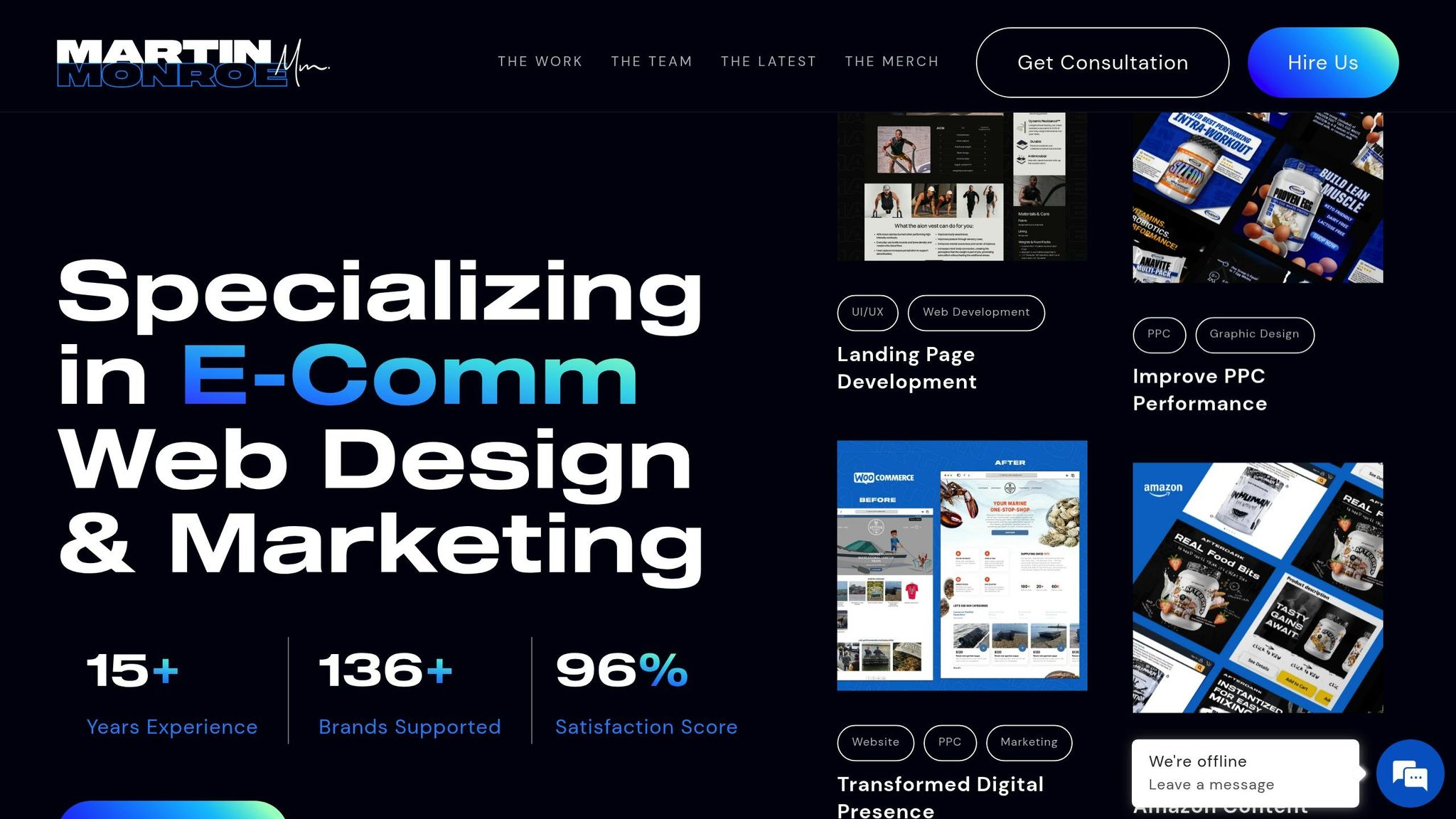
Teaming up with experts can make a huge difference in improving your Shopify store’s mobile experience. With mobile-first strategies becoming more important than ever, having experienced guidance ensures these practices are done right. Martin Monroe Creative focuses exclusively on e-commerce web design for Shopify, leveraging over 15 years of experience to help businesses stand out on mobile.
Mobile Design Services Tailored to Your Needs
Their process includes:
- Discovery: Understanding your brand’s goals and how users interact with your site
- Strategic Planning: Crafting a mobile-focused roadmap designed for your business
- Technical Implementation: Building responsive, user-friendly interfaces
- Post-Launch Support: Keeping an eye on performance and making adjustments as needed
Results That Speak for Themselves
With a 96% satisfaction rate and collaborations with more than 136 brands, Martin Monroe Creative has a proven ability to deliver results. Their portfolio includes success stories like LWO, which saw major improvements after adopting their mobile optimization strategies.
"Martin Monroe transformed our website with their innovative design and significantly improved our online presence. Their team was professional and responsive throughout the entire process."
– Elijah M., CNC
"Working with Martin Monroe was a game-changer for our digital marketing strategy. Their creative approaches led to a noticeable increase in engagement and sales."
– Kristen C., LWO
Focused on Mobile-First Solutions
The agency prioritizes smooth, user-friendly mobile experiences by focusing on:
| Service Area | What You Get |
|---|---|
| UI/UX Design | Easy navigation and tap-friendly layouts |
| Performance | Quick load times and seamless interactions |
| Development | Consistent functionality across devices |
| Marketing | Strategies tailored for mobile users |
Their approach has consistently delivered strong results for clients.
Specialized Mobile Design Support
They also offer targeted services, such as:
- Custom designs tailored for responsive mobile use
- Optimized mobile checkout for better conversions
- Enhancements to speed and overall performance
- Testing to ensure compatibility across all devices
If you’re looking to boost your store’s mobile shopping experience, Martin Monroe Creative provides free consultations to explore your specific needs and potential improvements.
Conclusion
Optimizing for mobile is crucial for Shopify success. Take Powering Fitness as an example - they skyrocketed from $300,000 to $8 million in sales within 18 months, thanks to a strong digital strategy and a focus on mobile-first design. This highlights just how impactful a mobile-focused approach can be.
Why Mobile Optimization Matters
A well-planned mobile design strategy can improve key metrics across the board:
| Aspect | Impact |
|---|---|
| User Experience | Smoother navigation and faster loading times |
| Customer Engagement | Longer site visits and fewer bounce rates |
| Sales Performance | Increased conversion rates and higher average order values |
| Brand Perception | Boosted credibility and trust among customers |
Keep Improving
Mobile optimization isn’t a one-and-done task. Regular testing and updates are necessary to ensure your Shopify store keeps up with changing technology and customer expectations. These tweaks align with the practical tips shared earlier in this guide.
Focus Areas for Success
To stay ahead, prioritize these key elements:
- Speed and Performance: Keep load times as short as possible with regular optimizations.
- User-Centered Design: Test navigation and checkout flows to ensure they meet user needs.
- Mobile-Specific Features: Add functionality designed for mobile users, like touch-friendly buttons.
- Device Compatibility: Test your store on various devices and screen sizes to ensure consistency.
By applying these principles, you can maintain a competitive edge and deliver a strong mobile experience.